
Manage team projects in the kanban board made for Google Workspace
See where everything stands, all at once, and identify bottlenecks in an instant — inside the best project management tool for Google Workspace





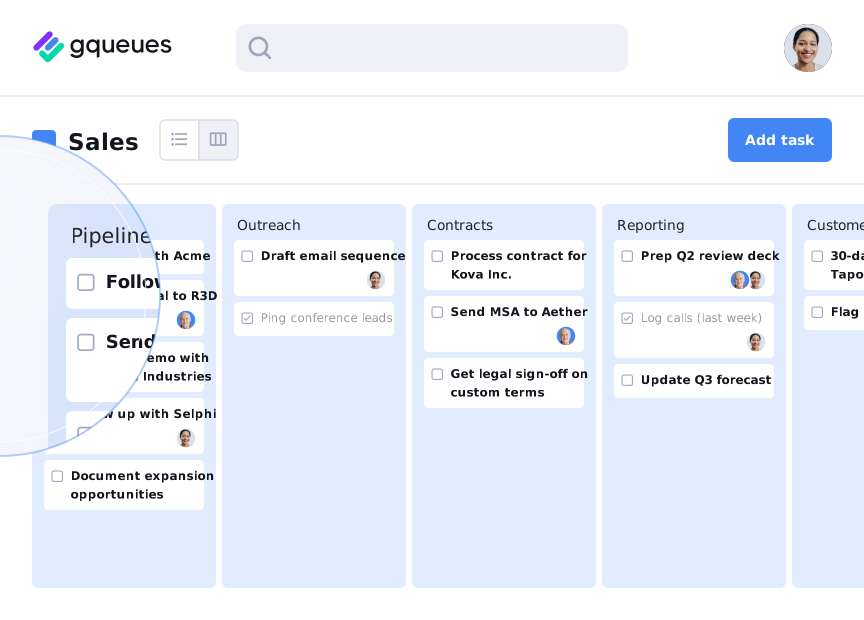
See your team’s whole project at a glance
Board view gives you a bird’s-eye view of every task in your team’s project, grouped by status, priority, assignee, or however you want to organize them. Gain visual clarity so you can identify bottlenecks in an instant.


Keep everyone in sync with faster task updates
Updating project status in Board view is as easy as a drag and a drop. Teams coordinate better when they have accurate, timely project updates. Plus with less administrative burden, you’ll have more time to focus on the work itself.
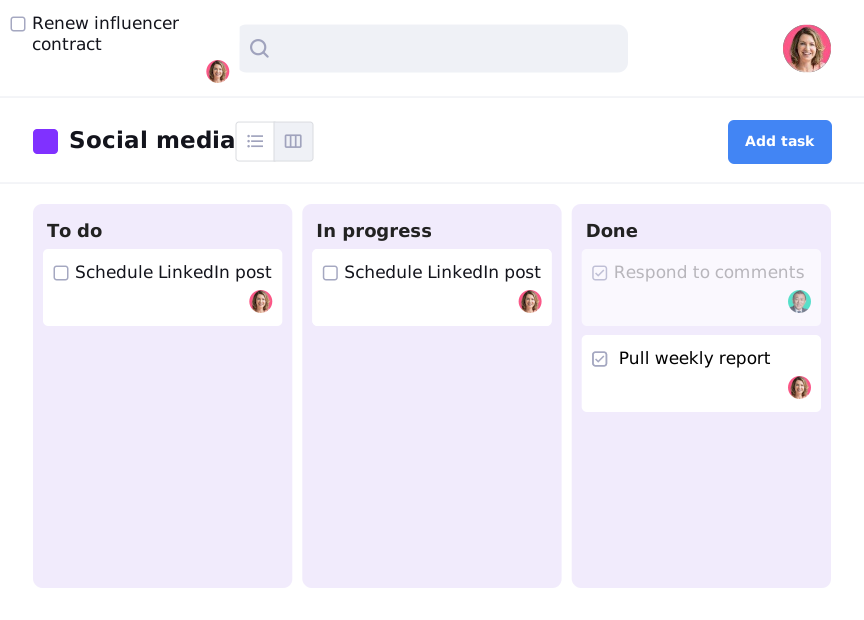


Dive deeper into task details
Open a task card to see all the context you need to get the task accomplished. Task Detail view opens a full-screen layout of date, assignee, tags, notes, subtasks, and more, plus a side panel for comments and activity.
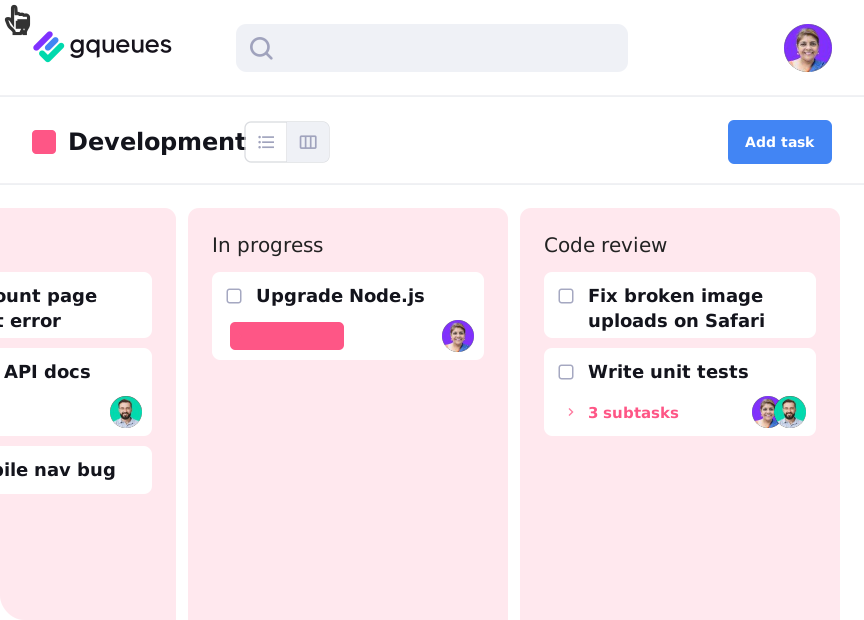
Room for the details, without crowding the board
GQueues is ready for your most complex projects with unlimited layers of subtasks. GQueues is the only project management tool that lets you see subtasks on a kanban board.



Get the project manager made for Google Workspace
GQueues is designed to be familiar for teams that run on Google Workspace. It won't feel like a new tool to learn, so you can get to work instantly.
It's a project manager that works seamlessly with the Google Workspace apps you already use every day like Gmail, Google Calendar, Drive, and more. These aren't clunky and fragile automations — they're effortless integrations that take one click to set up and feel natural right away.

Start your kanban project faster with a template


Frequently Asked Questions
Kanban boards are a project management system developed at Toyota in Japan in the Twentieth Century. A kanban board is organized into vertical columns, traditionally representing the stages of a project, such as “Not started,” “In progress,” and “Done.” The Japanese word “kanban” translates to “signboard” in English. In kanban project management, this refers to the individual tasks or components of the work that are represented on the board by cards. These visual cards are moved from one column to the next as work gets completed. Toyota developed kanban because they found that limiting the work-in-progress made their manufacturing process more efficient — and the board layout made clear exactly which work was currently in progress. After the turn of the century, kanban boards also became popular for managing software development projects. They continue to be adapted and customized for many different types of task and work management.
Every GQueues plan includes access to both List view and Board view. No matter whether you use GQueues Lite, GQueues for YOU, or GQueues for BUSINESS, you can view tasks however best suits your work.
In GQueues, you can customize Board view column titles to be anything that suits your work. The standard setup for a kanban board that tracks a project in progress is to use column names like “Not started,” “In progress,” and “Done,” and you can create more columns that enhance the specificity of your status updates depending on the nature of your work. (For example, a bakery tracking customers’ cake orders may expand the in-progress section to include columns such as “Batter assembled,” “Finished baking,” “Frosted,” “Decoration complete.”) However, there are many other ways to set up your board columns to suit your work. Some teams map out the days of their week, with a placeholder for work that will be deferred to the future: Monday, Tuesday, Wednesday, Thursday, Friday, Next week. Other teams use columns to track work assigned to each different member of the team to balance workload. The possibilities are endless!
Right now we only offer annual billing.
GQueues has a kanban board feature we call Board view. Any queue can be viewed in either the default List view or as a board, and you can switch between views with just one click. Sections in List view translate to columns when you switch to Board view and vice versa. In Board view, tasks appear as cards that can be dragged between columns for easier status updates and faster project management. You can add as many columns as you need to suit your workflow, and you can customize the column names, too. GQueues is a simple yet powerful project management tool that has all the features you need to coordinate your team's work.
No, the short answer is that Google Workspace does not have a kanban board. There is no Trello alternative in Google’s native apps. If your team uses Google Workspace and you want to use a kanban board to manage projects, GQueues is the best solution. You can use Board view in GQueues to implement a kanban board that integrates deeply with your Google Workspace apps like Gmail, Google Calendar, Google Drive, and more.
Some people try to use Google Tasks to recreate this functionality, but they end up disappointed because it arranges your lists side by side, which doesn’t match the use case and leads to disorganization. Google Tasks also lacks collaboration features; it’s not sufficient for any type of team project. Compare GQueues to Google Tasks. (If you find yourself in this situation and you want to upgrade from Google Tasks to GQueues, you can use our import tool to migrate your data quickly.)
To switch any queue between List view and Board view on the web, simply click the toggle next to the queue name near the top of your screen. Sections you create in List view will turn into columns when you switch to Board view, and vice versa: if you create a new column in Board view, it will establish a new Section if you switch back to List view.
Chat with our Customer Care Team! We’re happy to answer any questions you have about GQueues 😄


Prioritize your way to peace of mind

