
Project management software that connects to AI tools like Claude and ChatGPT
AI assistants can quickly and securely add tasks, move due dates, and see what’s due across your team’s queues, all in everyday language.





Chat with AI about your tasks
Find tasks assigned to you so nothing falls through the cracks. Surface what’s urgent for today or due this week. Use natural language — or even your voice — to document work and assign it to colleagues.

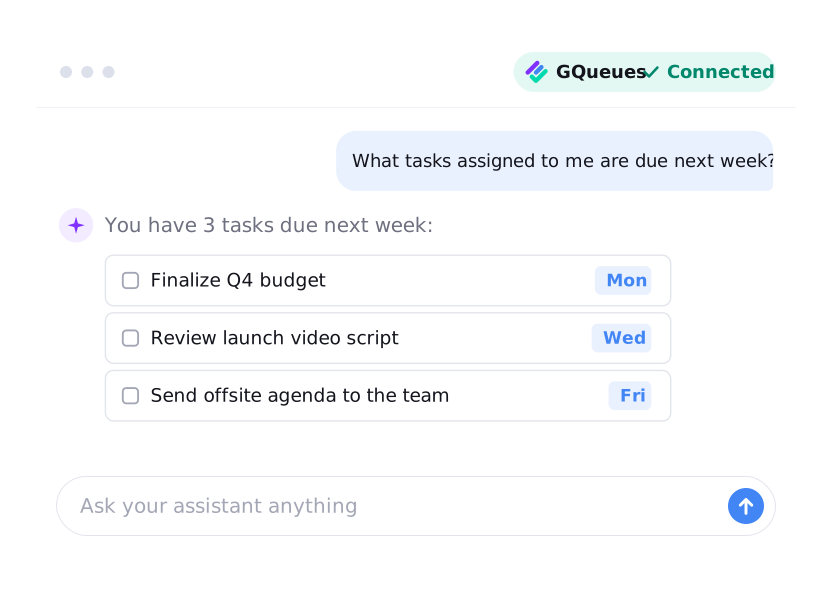
“What tasks assigned to me are due next week?”

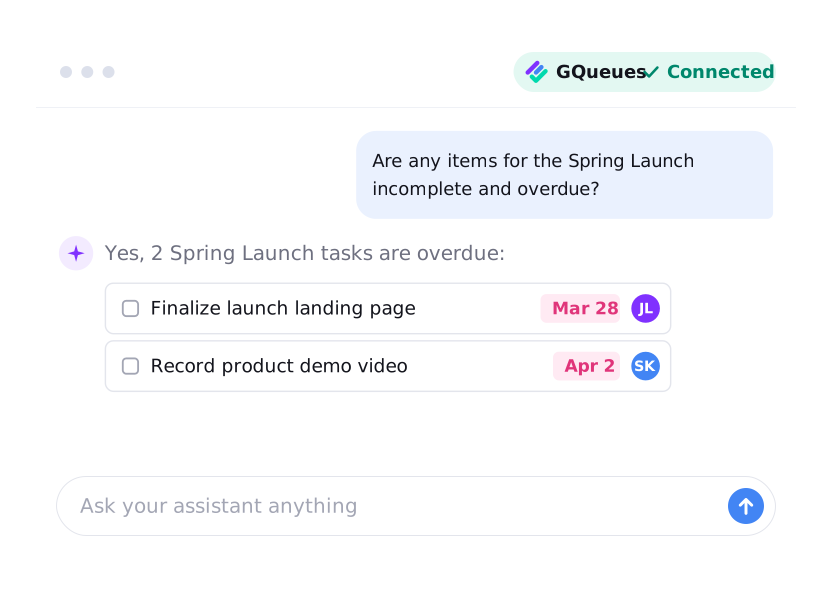
“Are any items for the Spring Launch incomplete and overdue?”

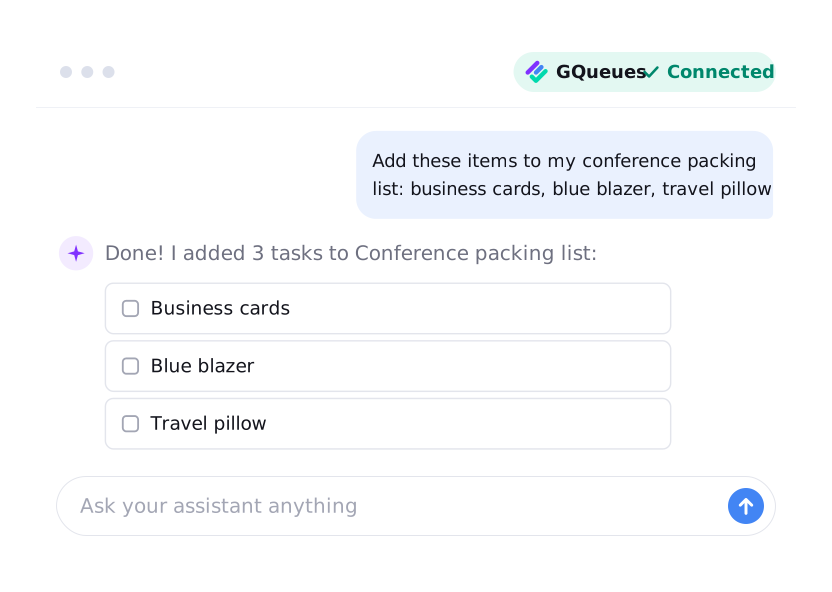
“Add these items to my conference packing list: business cards, blue blazer, travel pillow”

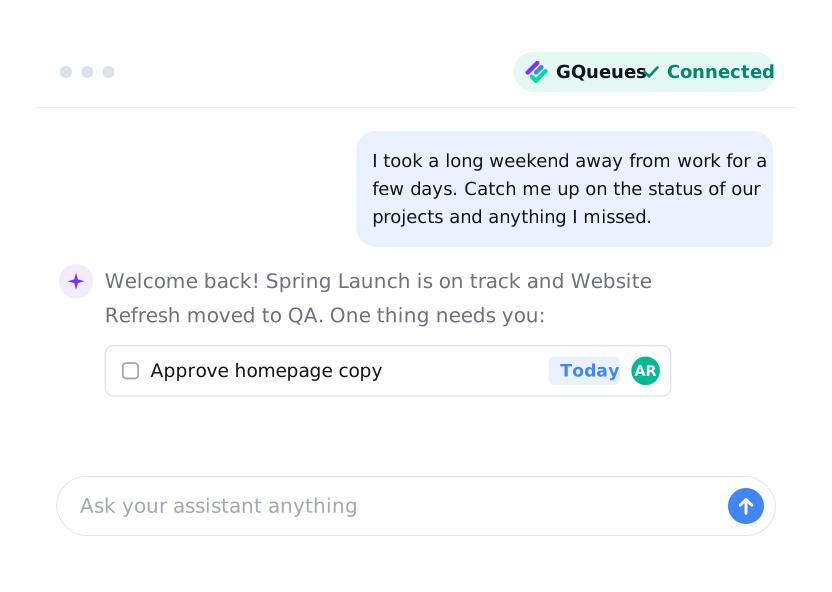
“I took a long weekend and I was out of the office for a few days. Catch me up on the status of our projects and anything I missed.”


Use AI to organize your work and plan your projects
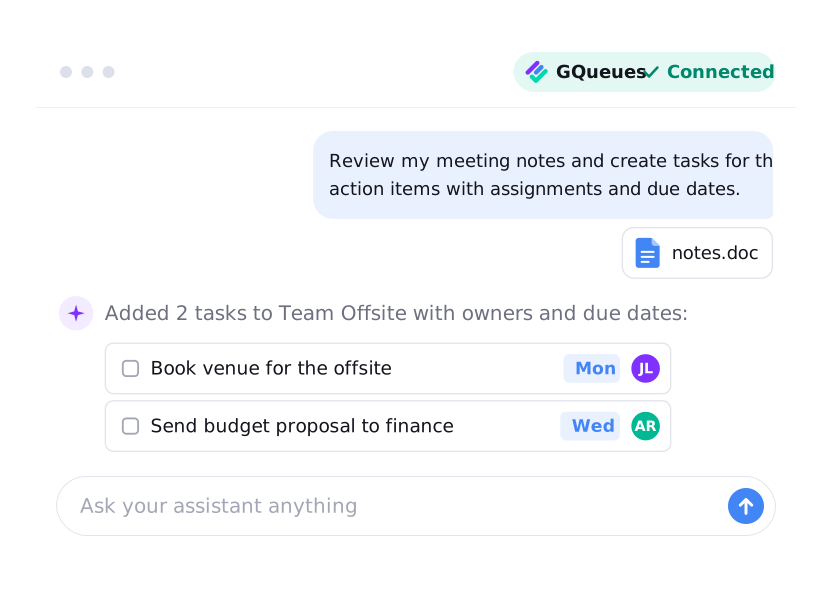
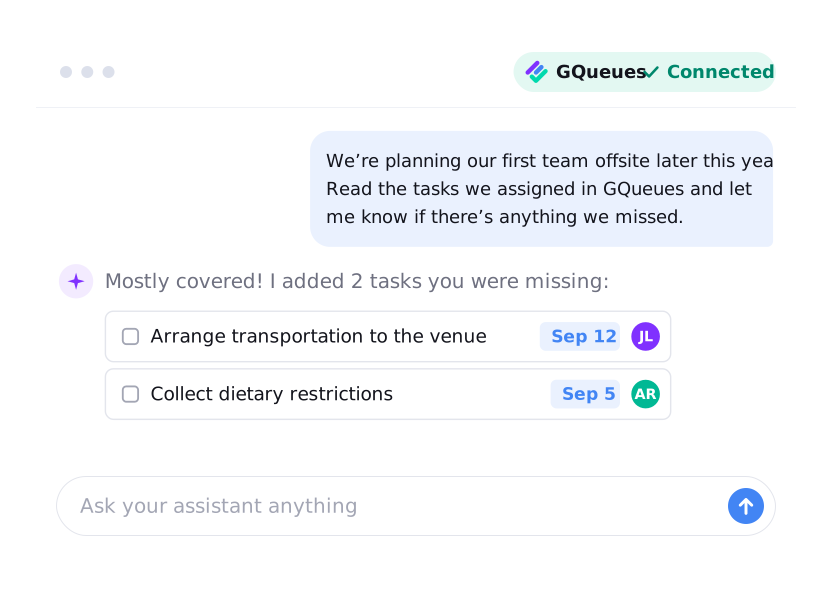
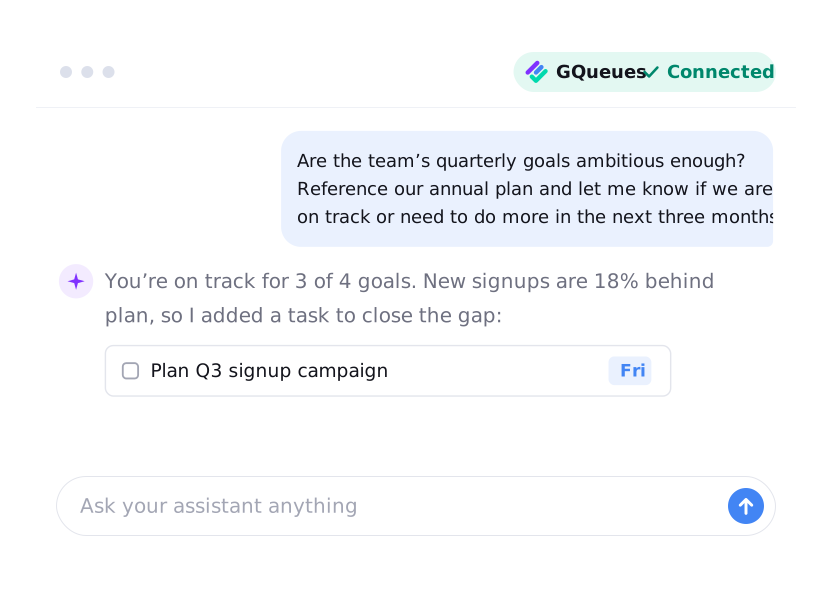
Turn messy meeting notes into organized tasks in GQueues, use AI as a strategic advisor to identify gaps in a plan, and evaluate progress towards your goals against the work already in GQueues.

“Review my meeting notes and create tasks for the action items with assignments and due dates.”

“We’re planning our first team offsite later this year. Read the tasks we assigned in GQueues and let me know if there’s anything we missed.”

“Are the team’s quarterly goals ambitious enough? Reference our annual plan and let me know if we are on track or need to do more in the next three months.”

Your AI agents are already doing work for you. Now, they can update your task tracker, too.
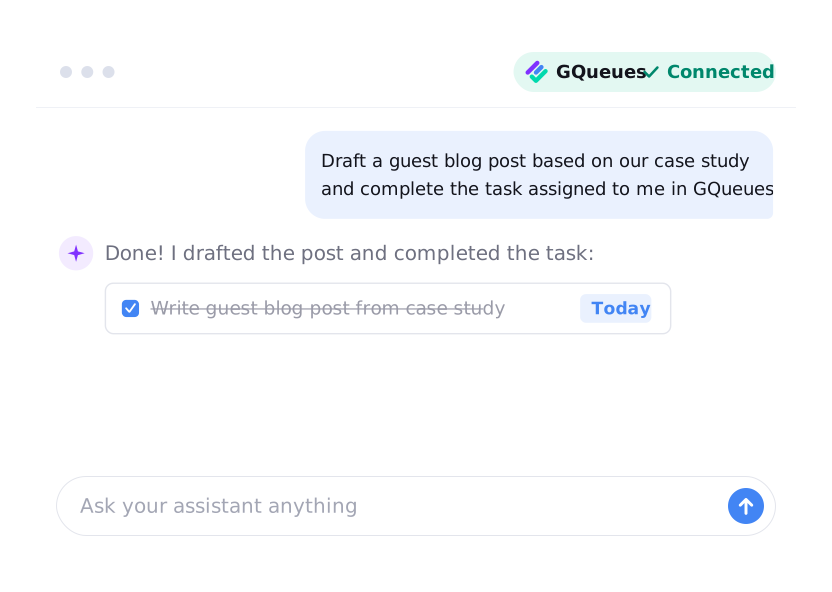
Using AI agents to work on your projects? Now they can update the project management tool, too. When an agent finishes a job, it can check off the task in GQueues or move it to the next column, so your team always sees the latest status.

“Draft a guest blog post based on our case study and complete the task assigned to me in GQueues”

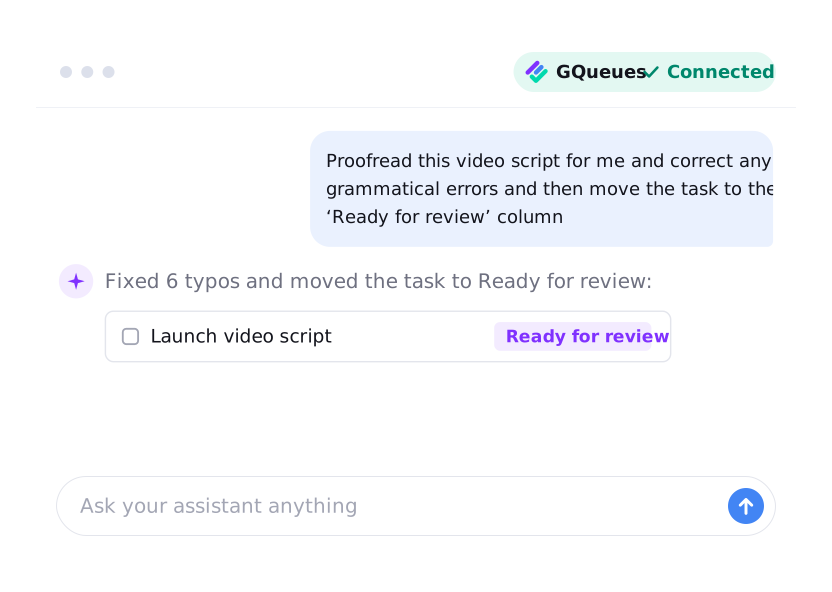
“Proofread this video script for me and correct any grammatical errors and then move the task to the ‘Ready for review’ column”

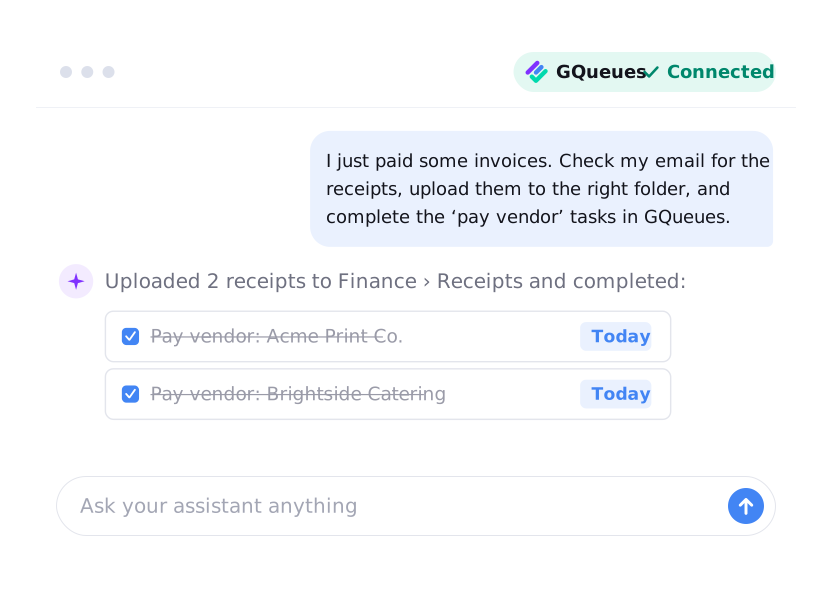
“I just paid some invoices. Check my email for the receipts, upload them to the right folder, and complete the ‘pay vendor’ tasks in GQueues.”

Works with your AI assistant
Add GQueues to the assistant you already use and sign in securely with your GQueues account. Your assistant works with the same queues, teams, and permissions you have in GQueues.


What is an MCP?
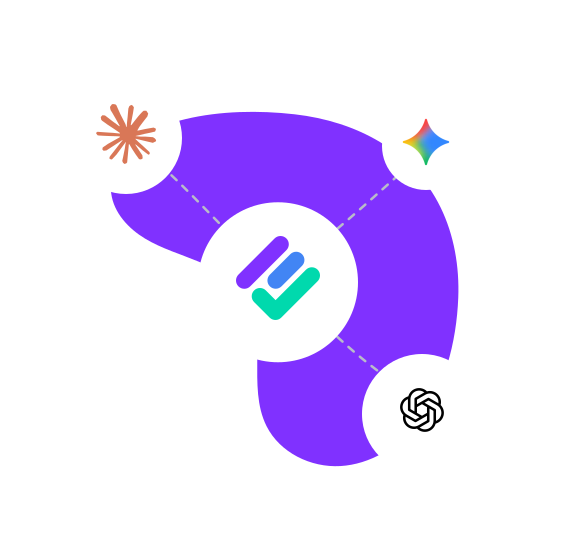
MCP stands for Model Context Protocol, an open standard that lets AI assistants connect to the other apps you use. The GQueues MCP is the connector between your assistant and your GQueues account, so it can securely find, add, and update your tasks when you ask.
Get started with the GQueues MCP →A secure connection that keeps you in control
You decide what connects to your tasks, and you can change your mind anytime.

Secure sign-in
You connect with OAuth, so your AI assistant never sees your GQueues password.

Straight to GQueues
Requests go directly to the GQueues server. There’s no third party in the middle.

Your data stays yours
GQueues doesn’t train anything on your data. (Check your AI tool’s settings and terms for their policies.)

Least-privilege permissions
Your AI assistant can never do anything your logged-in account doesn’t have permission to do. There are additional limits on destructive changes: tasks cannot be permanently deleted through the MCP.

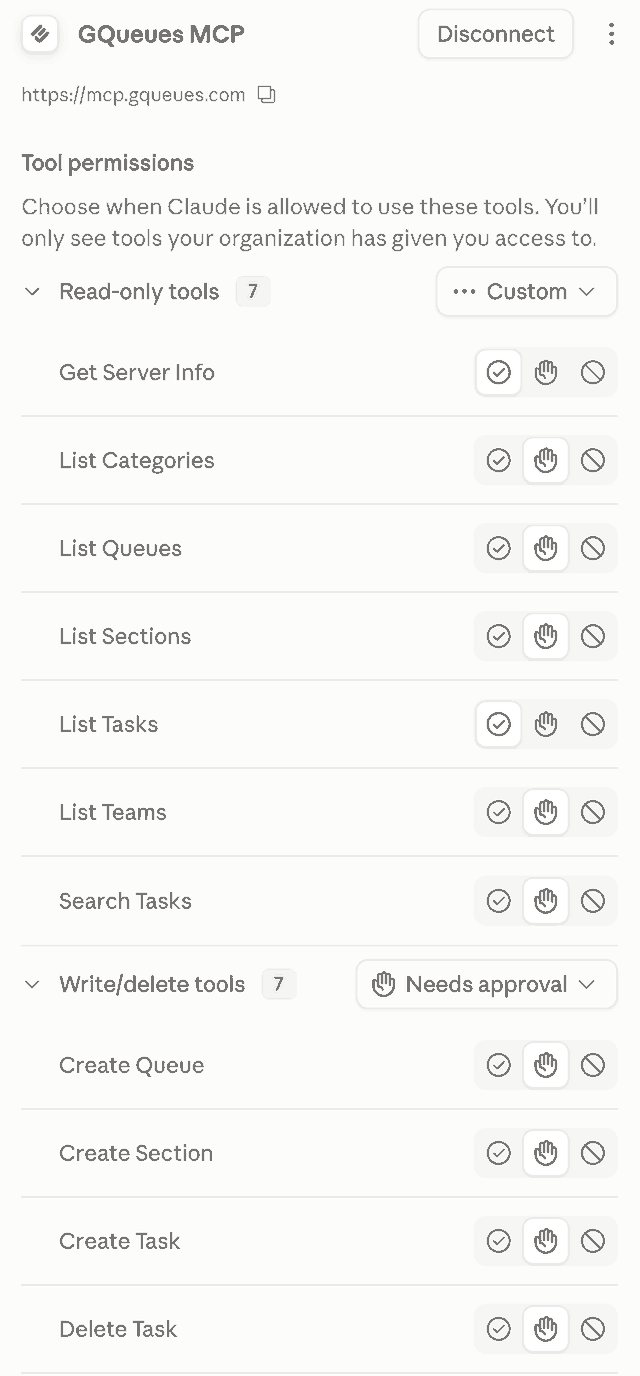
Per-tool admin controls in Claude

Disconnect anytime
Visit Settings → MCP to see a list of every connected assistant. Use the Disconnect button there to cut off access instantly.


Frequently Asked Questions
GQueues works with any AI assistant that supports MCP, the open standard AI tools use to connect to other apps. The GQueues help center has step-by-step setup guides for Claude, ChatGPT, and Gemini, plus command-line tools like Claude Code and OpenAI Codex. You connect each assistant securely by signing in with your GQueues account.
An AI assistant connected to GQueues gets the same features and permissions as your GQueues account, so the assistant can’t do anything you couldn’t do yourself. From there, the possibilities are endless, from simple task creation and edits to working alongside you to plan ambitious projects and achieve them piece by piece.
Yes. You connect to the GQueues MCP securely with OAuth, so your AI assistant never sees your GQueues password. Requests go directly to the GQueues server, with no third party in the middle, and GQueues doesn’t train anything on your data. You can see every connected AI assistant in Settings → MCP and disconnect any of them instantly.
Essentially, yes. “Connector” is Claude’s name for a secure connection to another app, like GQueues. ChatGPT calls the same kind of connection an app, and Gemini uses the term MCP server. Behind the scenes, all three use MCP to connect to GQueues.
Yes. Through the GQueues MCP, your AI assistant can see and change the same team and shared queues you can, following the same sharing rules and permissions you have in GQueues.
Every GQueues plan can connect to the GQueues MCP. How much your AI assistant can do in GQueues each month depends on your plan, and new GQueues accounts start with a 14-day BUSINESS trial.
Yes. Add GQueues from Claude’s connectors, sign in securely with your GQueues account, and start asking Claude about your tasks. See How to connect GQueues to Claude for step-by-step instructions.
Yes. Add GQueues as an app in ChatGPT, sign in securely with your GQueues account, and start asking ChatGPT about your tasks. See How to connect GQueues to ChatGPT for step-by-step instructions.
Yes. Gemini users can add GQueues with a single command in the Gemini CLI, then sign in securely with their GQueues account. See How to connect GQueues to Gemini for step-by-step instructions.
Yes. The GQueues API lets developers do everything the GQueues MCP does from their own scripts and tools, using personal access tokens they can revoke at any time. See Getting Started with the GQueues API.


Prioritize your way to peace of mind

