
Looking for the Google equivalent to Microsoft Planner?
Meet GQueues.
GQueues is the project manager missing from Google Workspace — designed to feel native and deeply integrated with Gmail, Calendar, Drive, and more




Switching from Microsoft to Google?
Maybe you just started at a company that runs on Google Workspace. Maybe your whole organization is moving off Microsoft 365. Either way, your email, calendar and files have a new home, and your team's plans need one too.
If you relied on Microsoft Planner to track your team's work and you're looking for a replacement, you've come to the right place. GQueues is the only Microsoft Planner equivalent in the Google ecosystem and the best alternative for your team's tasks and projects.

If you opened Google Tasks and thought, "This can't be it," you're right. Tasks is the Google Workspace app for personal to-dos, not team projects. It lacks collaboration tools like comments and view-only permissions and it's missing alternative views like kanban boards.
We built GQueues because alongside native Google apps like Gmail, Calendar, Drive, and Docs, there was no central place to keep work organized and bring all that context together. Unlike other project management tools that offer bolt-on connections to these apps, GQueues has been designed from the ground up to integrate deeply with the Google apps you use every day for email, scheduling, and files. (It's not a direct replica of Microsoft Planner, because Gmail differs from Outlook, Drive differs from OneDrive, etc., but you'll find that the convenience and synchronization that makes Planner stand out is a strength of GQueues, too.)

If you've tried building a Planner board in Google Sheets, you know it gets close: a timeline view, colorful status dropdowns. But "assignments" are just text in a cell, so nobody gets notified or has the task appear in their own space. There's no single view across sheets, so either one doc gets cluttered or your plans are spread out all over the place. The issues go on: files can't be attached, due dates don't sync to Calendar, commenting becomes a mess after more than one or two.
This page helps you navigate the switch from Microsoft to Google for your team's tasks and projects. It shows how your team can track that work in GQueues, with every Planner feature mapped to its equivalent in GQueues.



See your Planner plans in GQueues
The boards, checklists and assignments you rely on in Planner align cleanly with boards, subtasks, and assignments in GQueues — and that's just the beginning of the similarities. Compare every Planner feature to see where it maps in GQueues, or if you're ready to get started, see how to move your plans with convenient options for migration.

Planner's buckets become sections in GQueues, shown as columns on the board. Drag tasks, or whole columns, to reorganize.

Planner checklists become subtasks in GQueues, and each subtask can have its own due date and assignee.

Assign tasks and subtasks to anyone in your Google Workspace directory.
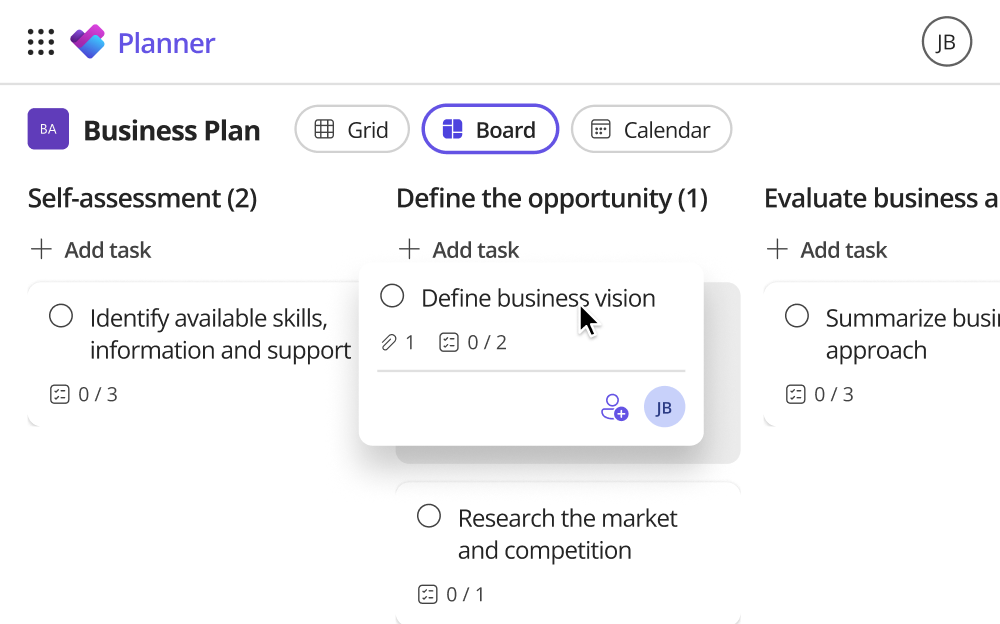
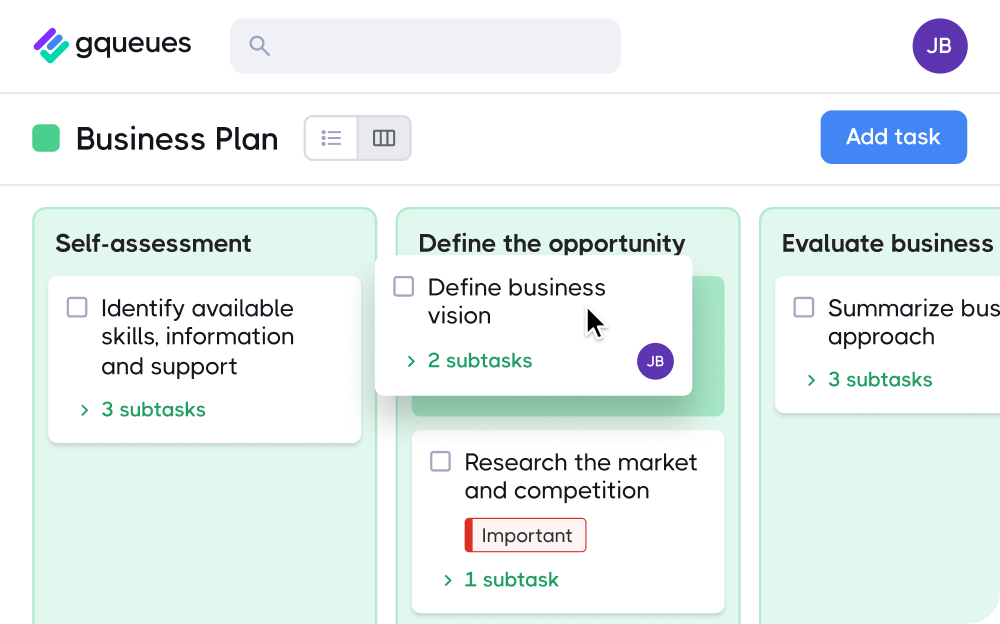
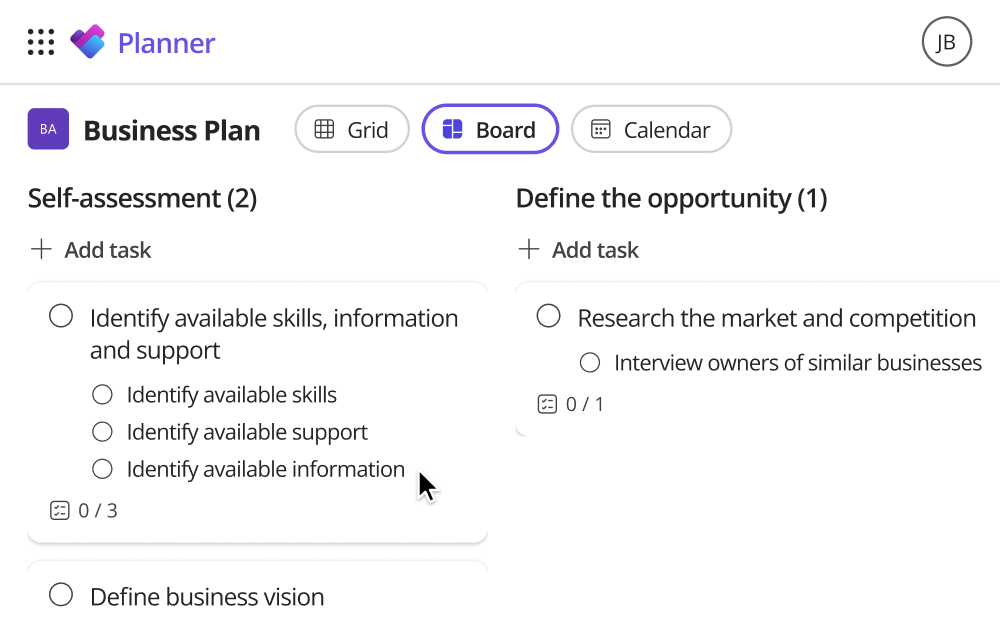
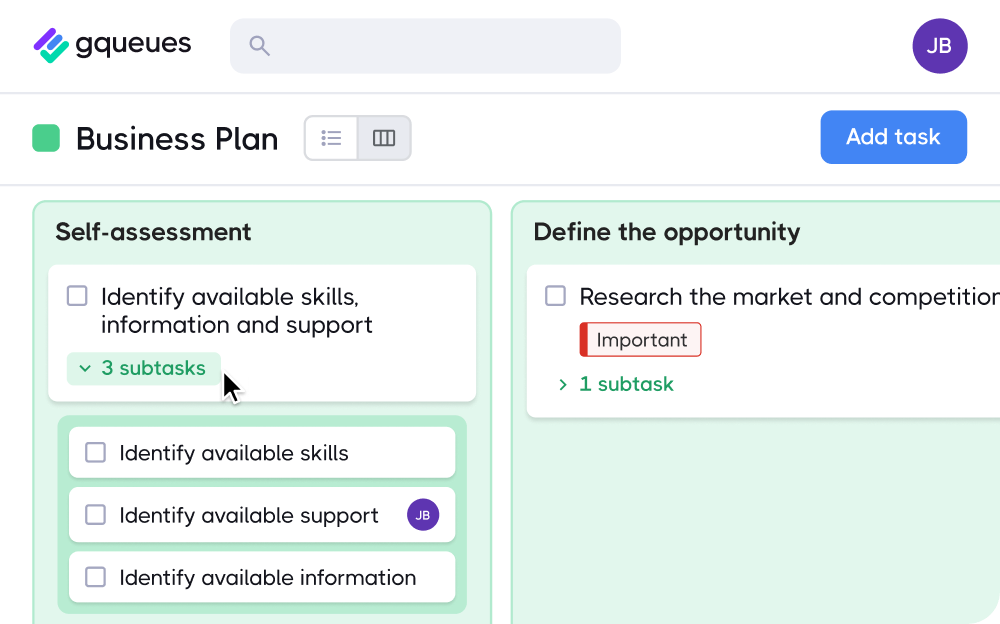
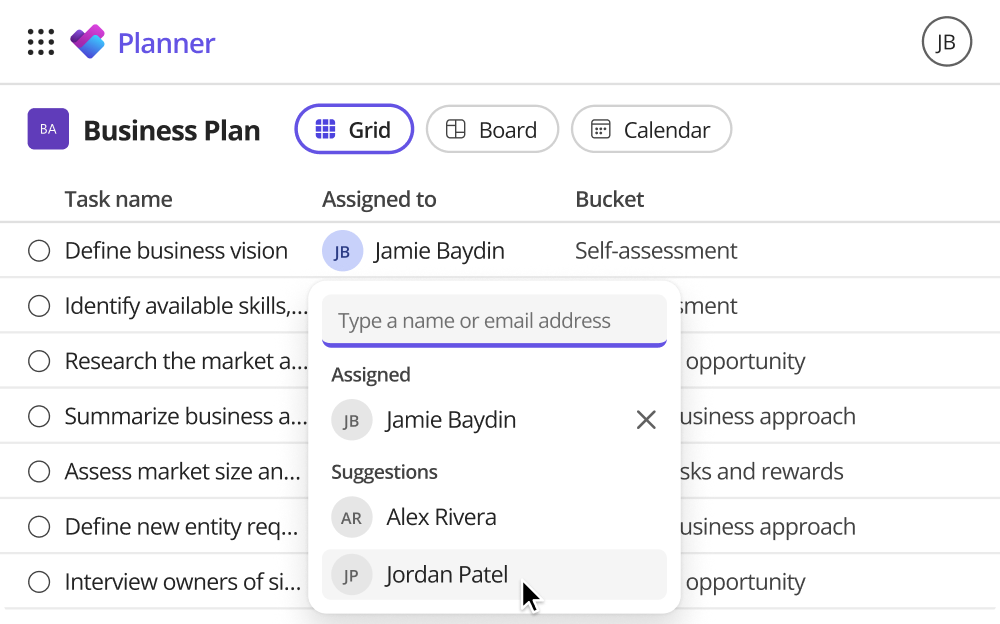
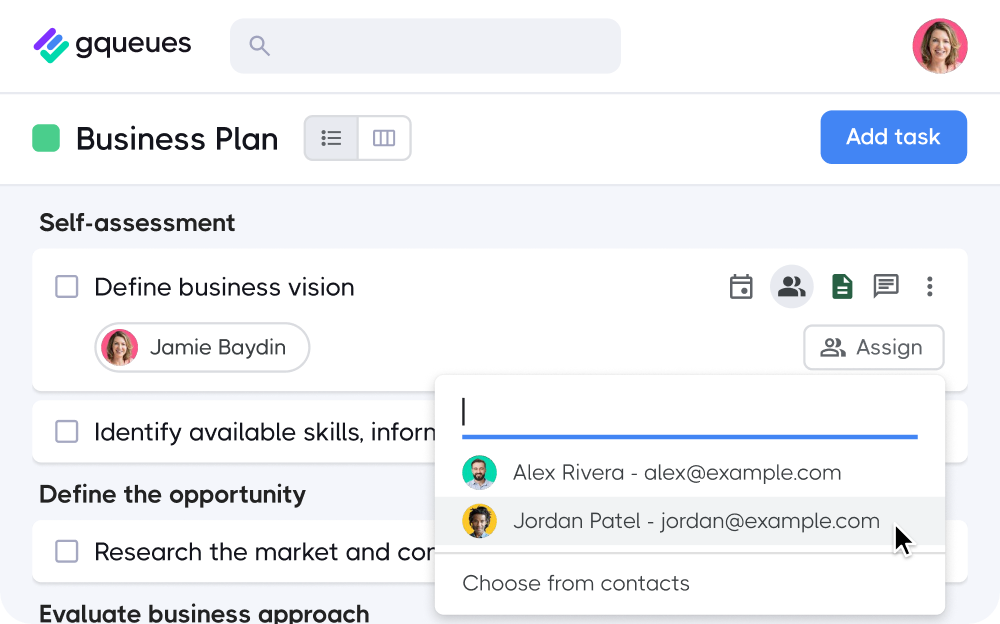


The best Microsoft Planner alternative that feels native inside Google Workspace
Each Planner feature you rely on and where you'll find it (and what it's called) in GQueues. Plus, see how Google Tasks stacks up and where exactly it falls short.
 In Planner |  In Google Tasks | |
|---|---|---|
| Plans |  Personal lists only. No projects, and no way to share a list with a team |  Queues, grouped into categories |
| Buckets |  Less organized: No sections within a list | Sections within a queue or columns on a board |
| Board view | Limited views: No kanban board view | Board view (kanban) |
| Tasks and subtasks (checklists) | Tasks with subtasks one layer deep | Tasks with unlimited subtasks |
| Assign to people | Only from a Google Chat space or a Google Doc | Assignments, using Google Contacts |
| Owners, members and guests | No permission settings for who can view or edit tasks | Six team roles to fine-tune collaboration, from viewer and commenter to manager and owner |
| Due dates, reminders | Dates, times, deadlines and repeating tasks. Tasks with subtasks can't repeat | Due dates, reminders, repeating tasks |
| Labels | No labels or tags | Tags |
| Attachments | Google Drive files, added from Tasks in Calendar | Google Drive attachments with automatic smart sharing for teammates |
| Comments | No task comments | Time-stamped comments on tasks with @mentions to notify teammates |
| My Tasks / Microsoft To Do |  Lists, plus a pending-tasks view in Calendar | Personal queues, Smart Queues |
| Outlook: flag email as task | Add to Tasks from Gmail | Gmail add-on for task creation and attaching emails to tasks, email-to-queue addresses for forwarding |
| Planner in Outlook calendar | View and edit tasks in Google Calendar | Two-way Google Calendar sync with multiple calendar support to keep separate projects organized |
| Planner in Teams | Tasks tab in Google Chat spaces | Opens from the Google apps menu |
| Mobile app | iOS and Android apps | iOS and Android apps |
| Planner Agent in Microsoft 365 Copilot | Gemini AI assistant. Access and capabilities may vary by plan. | GQueues MCP for Claude, ChatGPT and Gemini |

Start fresh, or import your plans from Microsoft
How you get started in GQueues depends on where you're coming from and whether you're bringing your work with you.
Starting fresh. New job, or leaving old plans behind? Sign in with your Google account and start adding and organizing your work, or start from a template.
Import tasks as a spreadsheet. Export each plan from Planner to Excel, save it as a CSV file, and bring the tasks in with GQueues' CSV import.
Handing it to your AI assistant. Connect GQueues to your AI assistant with the GQueues MCP and ask it to rebuild what you had in Planner: a queue for the plan, a section for each bucket, and tasks with their due dates and assignees.
Project management with the deepest Google integrations
No other task manager works as closely with Google Workspace. Sign in with your Google account and open GQueues from the Google apps menu. Turn emails into tasks with the Gmail add-on. See and edit due dates in Google Calendar with two-way sync. Attach files from Google Drive to tasks and GQueues updates permissions automatically so everyone who can see the task can access the file. Share queues, assign tasks and @mention teammates in comments using Google Contacts, and keep up from the iOS and Android apps.


Google Calendar syncing
Real-time, 2-way syncing means you can add tasks from Google Calendar or GQueues. They’ll update in both places and you get the flexibility to work from either.
Gmail Add-on
Turn your emails into tasks so the key details are always within reach. And all those assignments emailed to you? They actually get done.
Google Drive attachments
Attach files to tasks and create new Sheets, Docs, and Slides right from GQueues. File sharing and permissions are handled for you automatically.
Google Contacts integration
Use the contacts you already have to make sharing your work and delegating tasks fast and easy.
Google Workspace installation
See GQueues next to your other Google apps for quick access to your tasks from wherever you work.
Watch: What is the Google version of Microsoft Planner?
Read the video transcript
If you or your team are moving from Microsoft to Google, you're probably looking for the Google version of Microsoft Planner. You need that bird's-eye view of your team's tasks, the Kanban boards, the assignments, and the progress tracking. Hi, I'm Ryeon, and today I'm going to show you how to manage tasks like you did with Planner — but within Google Workspace.
In the Google ecosystem, there isn't one single, native app included with Workspace that replaces Planner. Instead, Google utilizes a combination of tools to achieve that same result. I'll show you the most effective "native" way to build a Planner-style board for free, and then we'll look at a task management tool called GQueues that has everything you need when you outgrow the native system.
For personal to-dos, your first stop is Google Tasks. It's built right into the side panel of Gmail, Calendar, and Drive. It's excellent for quick, individual items like a shopping list, or quick reminders, but it's strictly for solo users. It lacks the collaborative boards and project-level views you're used to in Planner.
The closest native experience to using Planner for team projects is actually found inside Google Sheets. This may feel familiar to you if you've used Microsoft Excel. Start by opening a sheet and selecting Timeline from the Insert menu. You'll need to set up a few specific columns: Task Name, Start Date, End Date, and Assignee. Once you select your data range, Google generates a visual roadmap that looks very similar to a Gantt chart or a Planner timeline. To replace that Kanban board feel, we're going to use Dropdown Chips. You can create a column for Status and use Data Validation to create these colorful tags.
This Sheets method is great for a small project or a solo user. But if you've actually managed a team in Microsoft Planner, you're likely noticing the friction points already. Here's the gap: in a spreadsheet, an assignment is just text in a box. It doesn't trigger a real-time notification to the user. There's no native way to see your tasks from three different Sheets that are tracking three different departments or projects in one master view. And as the project grows, your "planner" becomes a sea of manual data entry. You spend more time updating the Sheet than actually doing the work!
This is where GQueues comes in to fix those specific gaps. GQueues is the purpose-built project manager for Google Workspace that functions the way you expected a Google version of Microsoft Planner to work. What sets GQueues apart from other project management tools are its integrations with Google's native apps. Unlike a spreadsheet, GQueues has a deep, two-way integration with Google Calendar. When you set a deadline here, it appears on your calendar instantly. If you move it on your calendar, it updates here. It solves the visibility problem perfectly. You can see every task assigned to your team across every project with a simple click. To reduce clutter, you can organize your tasks with lists called queues, Tags, and more. No more hunting through five different sheets to see which member is responsible for what. There are also integrations with Gmail, Google Drive for your files, and more.
Now, you have a system that actually scales with your team rather than a spreadsheet you have to manually babysit every morning. Making a change to the tools you use every day, like learning Google after being a Microsoft user, is never easy. But I hope this walkthrough has given you some ideas for tracking your tasks and your projects. Check the link in the description for a free trial of GQueues, and be sure to subscribe for more productivity tips.

Frequently asked questions
Google Workspace doesn't include an app equivalent to Microsoft Planner, so teams that switch usually try one of three things. (1) Google Tasks covers personal to-do lists, but it has no shared team lists, boards or comments. (2) Google Sheets can work as a project tracker, but someone has to build it, keep every status current and chase updates by hand, and due dates don't send reminders or show up in Google Calendar on their own. (3) An external solution will be your best bet: GQueues gives you the structure you had in Planner. Create a queue for each plan, sections and a board for your buckets, assignments, comments, and due dates that sync both ways with Google Calendar. It's a separate app built for Google Workspace, so your team signs in with the Google accounts they already have. GQueues is the only solution that comes close to the native feel of Planner in Microsoft, but inside the Google ecosystem.
No, Google Tasks cannot replicate Microsoft Planner for teams switching from Microsoft 365 to Google Workspace. Microsoft Planner is a purpose-built project management tool designed for collaboration and tracking team tasks. Google Tasks is strictly a tool for individuals to manage their own tasks and to-dos. The strength of Microsoft Planner is its deep integrations with other Microsoft apps such as Outlook email and calendar, OneDrive, etc. Although Google Tasks integrates with an individual's Gmail and Google Calendar, it fails to facilitate sharing, assignments, and collaboration for your team's projects.
GQueues is the only Microsoft Planner replacement in Google Workspace. It has been designed to feel native in the Google ecosystem from day one. Its integrations with Google apps like Gmail, Calendar, Drive, Docs, and more are deeper than any other offerings. Unlike self-service, bolt-on automations offered by other tools, these integrations are built into GQueues.
In conclusion, for one person's to-dos, yes, you can use Google Tasks, but for a team, no. Google Tasks lists can't be shared with a team, tasks can only be assigned from a Chat space or a Doc, and there are no boards, sections, labels or comments.
You don't have to retype your plans. GQueues gives you three easy ways to bring your tasks over from Planner, from hands-off to hands-on.
First, sign in to GQueues with Google. Then...
Let your AI assistant do it. Connect Claude, ChatGPT or another AI assistant to GQueues with the GQueues MCP. Then give it a screenshot of your Planner board or your plan's Excel export, and ask it to recreate the plan: a queue for the plan, a section for each bucket, and each task with its notes, due date and checklist items as subtasks. Share your teammates' email addresses, and it can assign their tasks, too.
Paste a list. Choose Bulk add tasks from the Add task button's menu and paste in up to 250 task names, one per line. Start a line with a dash to make it a subtask, and type dates in plain language, like "Friday at 3pm."
Import a spreadsheet. For the most control, choose Export as Excel from the ... menu in your plan's header in Planner, match the columns to GQueues' CSV template, and import the file.
Starting fresh? If your old plans stayed behind at a previous job, sign in with Google and start from a template.
Yes. The Gmail add-on turns emails into tasks, and two-way sync shows your due dates in Google Calendar, where you can edit them.
Yes. GQueues is the Microsoft Planner alternative for teams on Google Workspace, with the features you're looking for: a queue for each plan, sections and a board view for your buckets, assignments, due dates and reminders, tags, comments, and Google Drive attachments. Google Workspace doesn't have a native project manager. Google Tasks is built for personal to-do lists, so it lacks the collaboration, team views and reporting a team needs. GQueues isn't made by Google, but it's designed to feel native: your team signs in with their Google accounts, and no other project management tool works as closely with Gmail, Google Calendar and Google Drive.


Get a Workspace that actually works.
Start your GQueues free trial. No credit card required.


Prioritize your way to peace of mind

