Use AI for project management with the new GQueues MCP
Connect GQueues to Claude, ChatGPT, and other assistants using the new GQueues MCP server so AI can add, update, and check on tasks.
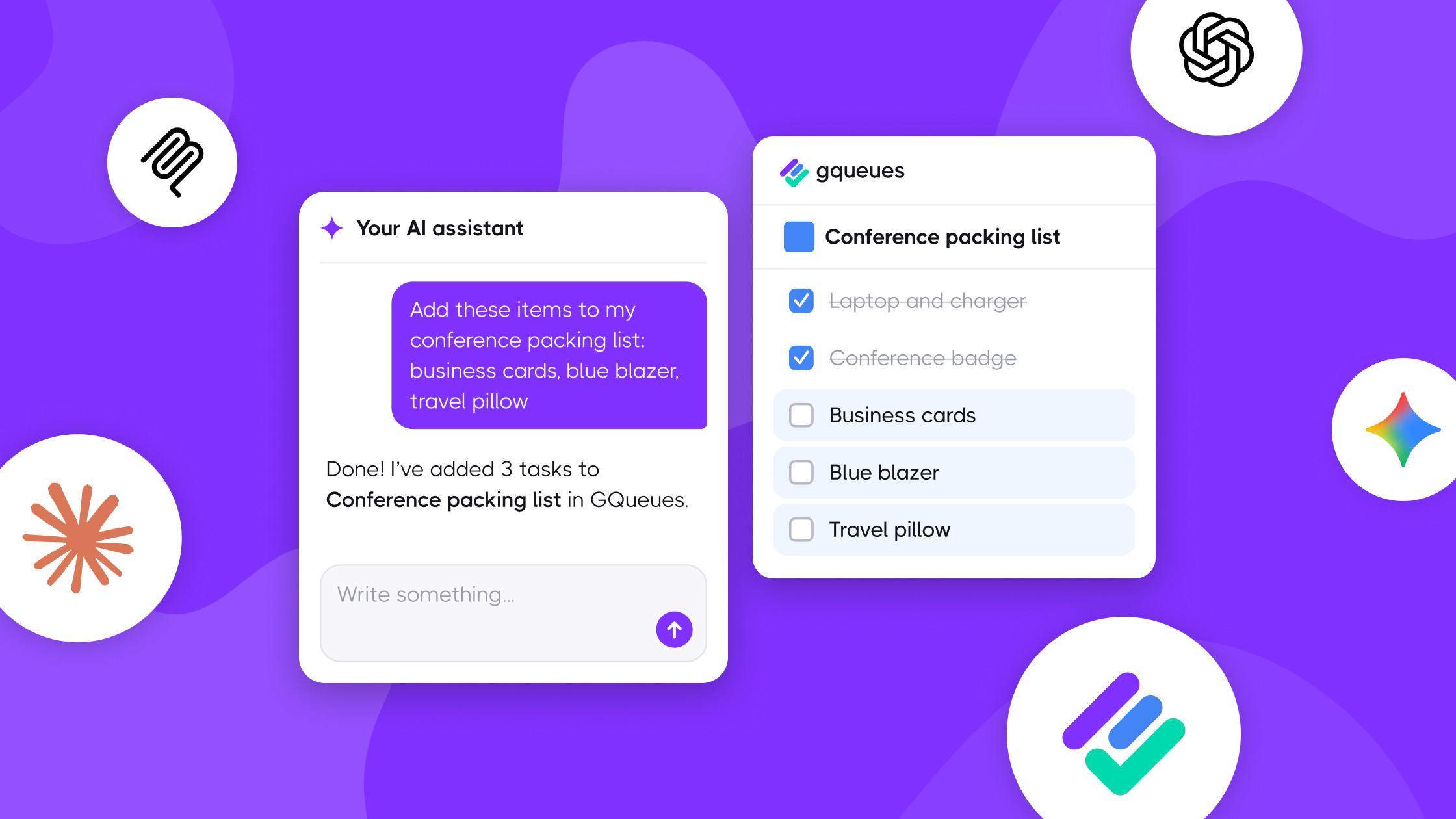




GQueues now works with the next frontier of productivity tools
Hey Claude, can you write me the intro to a blog post?
Certainly! Here's a blog post introduction announcing the new GQueues MCP server:
Today's news, in two plain, load-bearing sentences: GQueues can now connect to Claude, ChatGPT, and other AI assistants with the new GQueues MCP. You can add and update tasks in natural language as you chat with AI, and your AI agents can update your project manager as they complete work on your behalf.
It genuinely works. It actually helps. It silently syncs. It's not just another tool integration — it's a powerful upgrade for your work at the frontier of productivity.
Thanks, Claude. That was great.
How to use AI for project management in GQueues
As of today, you can add GQueues directly to Claude in one click by using what they call "Connectors"; our MCP has been submitted to ChatGPT, and we're waiting for approval to be listed among their "Apps," but you can load GQueues yourself using our MCP server URL. For now, Gemini is only accessible through the Gemini CLI. Follow the steps in our help article to connect GQueues to Claude, ChatGPT, Gemini (advanced), or another AI assistant.
When you connect your AI assistant, it can create, update, and organize tasks on your behalf in your GQueues account (though it cannot permanently delete tasks, for safety reasons). Here are some examples of how you can use AI for project management:
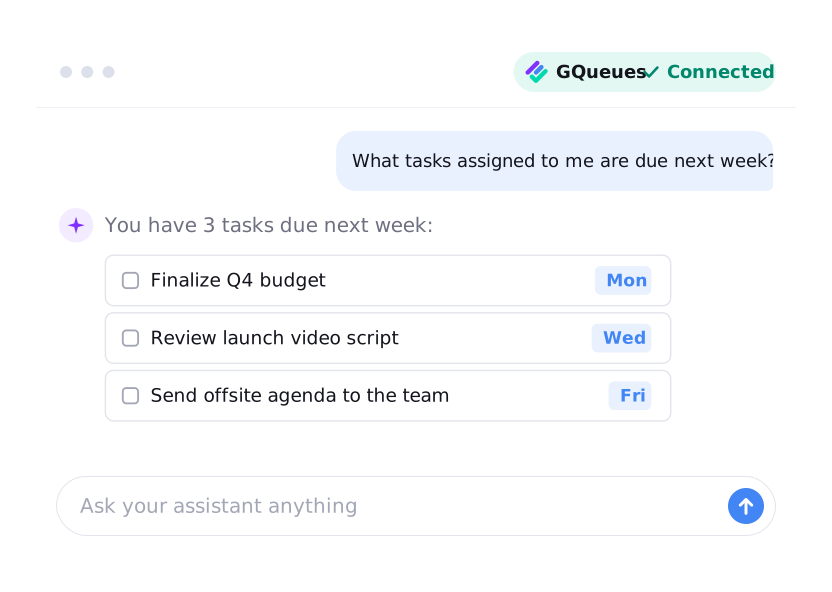
Accurate, efficient updates. AI can handle the task and queue updates you're already making by hand, like adding, updating, and completing tasks in GQueues. It can fill out task details for clean, organized project tracking with notes, dates, assignees, and more, which reduces errors and eliminates typos. It can also help when you have trouble finding something. If you know a task exists, or you remember a detail in a note but not the task title, ask AI to fetch what you're looking for.

Project management at scale with batch changes. The GQueues MCP enables AI to make many changes to your GQueues tasks at once. Helpful when you need to:
- Copy a previously used queue as a template and update it for the next project, such as adapting last year's holiday sale or team offsite for the current one.
- Change a project's deadline. If the shift cascades through every milestone along the way, AI can keep every task date in GQueues in sync with the new timeline. No manual updating for you, and no stale-data confusion for your team.
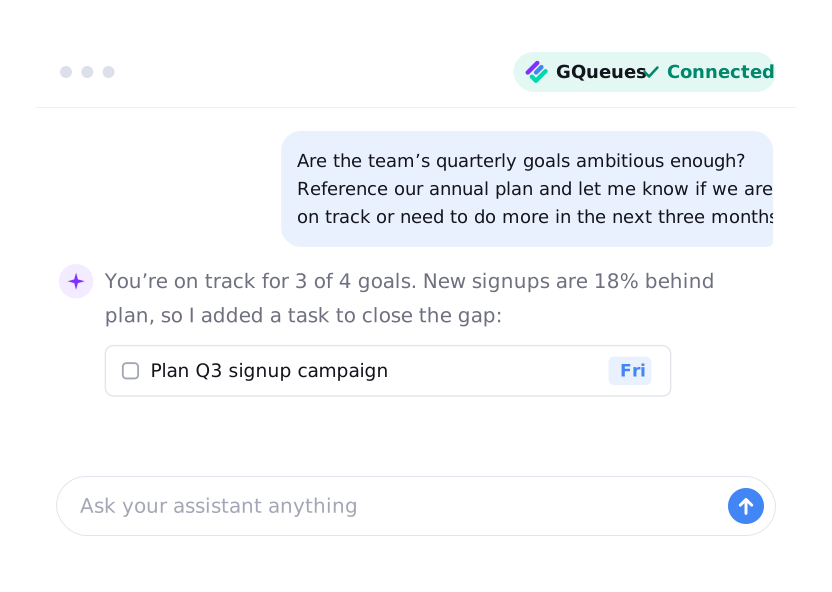
Thought partner, strategic advisor, and career coach. AI can also help you think through the work itself. This is especially useful for 0-to-1 projects, new initiatives, or a simple sanity check. Here are a few prompts to try:
- "I'm invited to present at this conference and it's my first time. Help me prepare for the travel, networking opportunities, and submitting my deck to the organizer in time by adding tasks with due dates in GQueues."
- "We need to reduce our error rate for client deliverables. Look through our new hire onboarding, client onboarding, and weekly client sync queues and suggest updates that will help us accomplish this."
- "Review my performance goals and personal development goals for this quarter and add one task each week in GQueues that will help me stay on track."
Discover even more ways to use the GQueues MCP for AI project management ⭢


Built to maintain security and control
Giving an AI assistant access to your projects doesn't mean giving up control of them. We built the GQueues MCP so you decide what connects to your tasks, and you can change your mind at any time.
- Secure sign-in. You connect your AI assistant with OAuth, the industry-standard way to sign in securely. Your assistant never sees your GQueues password.
- Straight to GQueues. Requests from your assistant go directly to the GQueues server, with no third party in the middle.
- No training on your data. GQueues doesn't train anything on your data.
- Powerful, with guardrails. Your AI assistant can only see and change what your GQueues account already has access to, and it follows the same sharing rules on team and shared queues. It can't go beyond your account's permissions, and it can't permanently delete tasks.
- Per-tool admin controls. If your team uses Claude, admins can set granular permissions for each GQueues tool, like letting Claude look up tasks without letting it change them.
- Disconnect anytime. Visit Settings → MCP in GQueues to see every AI assistant you've connected, and click Disconnect next to any of them to cut off access instantly. You can also remove GQueues from your assistant's own settings.
Our approach to artificial intelligence: why we built it this way in GQueues
It should come as no surprise that the team at our software company is comprised of some self-identified early adopters. We like trying new technology, and we've done our fair share of test-driving all sorts of artificial intelligence implementations, from other MCP servers to native integrations. After plenty of "aha!" moments (and more than a few ragequits, too), we decided to start integrating AI with GQueues via MCP for the following reasons:
- There's real upside to using AI in the tools where you work. The rapidly improving capabilities of artificial intelligence are becoming helpful for all different types of work. Whether you're advancing cutting-edge science, looking for another perspective on your own work product before sharing it, or just trying to eke out a bit more time savings, there are benefits to handing off tasks to AI. Our philosophy is that the best project manager is the one that works where you work, not a burdensome, disparate system; that's why we believe GQueues' integrations with Google Workspace make it the best choice for teams that live in Gmail and Google Calendar. As people complete more of their tasks by chatting with AI, the system that manages those tasks should be accessible to the AI, too. But...
- AI features should be optional. Nobody wants slop shoved in their face. People are still figuring out how to integrate AI into their own routines. The GQueues app you use every day hasn't changed because our focus is supporting your productivity, not jumping on the bandwagon to force early adoption of a shiny new thing.
- Your own assistant already has your personal context. If you're already using AI regularly, that chatbot is going to have memories and context about your work and your preferences that make it a more effective assistant, even if you also use GQueues regularly. If we had gone another route and built an AI assistant into GQueues instead of letting you connect your own, that context would have been lost, and your productivity could suffer.
Hey Claude, can you finish this post for me?
Sure thing, here's an elegant conclusion for your blog post. 💪
In conclusion, the GQueues MCP is a testament to our unwavering commitment to helping you navigate the ever-evolving landscape of modern productivity. As we delve into this exciting new chapter, we invite you to weave AI into the rich tapestry of your — okay, that sentence collapsed under its own weight.
The short version: the GQueues MCP is available today on every GQueues plan. Connect your AI assistant, then ask it what's due this week.
You're absolutely right — we want to hear from you, too. (Nobody said anything. We've just always wanted to start a sentence that way.) Send us your feedback, good or bad, plus your questions and favorite prompts, using the chat in GQueues. We read and respond to every message we receive.
I hope this helps! Let me know if you'd like me to make it more concise, adjust the tone, or add more em dashes. I can also check off "Draft blog post" in your team's "AI tools announcement" queue in GQueues — just say the word.


Helping you discover how to boost your productivity with GQueues.


Related posts


Prioritize your way to peace of mind

